AI Photo Editor
Say what to change and pick the model to do it: Nano Banana, GPT Image 2.5, FLUX.1 Kontext, Seedream or Qwen-Image. Every edit on this page is a real run on Leap.
One photo, one sentence
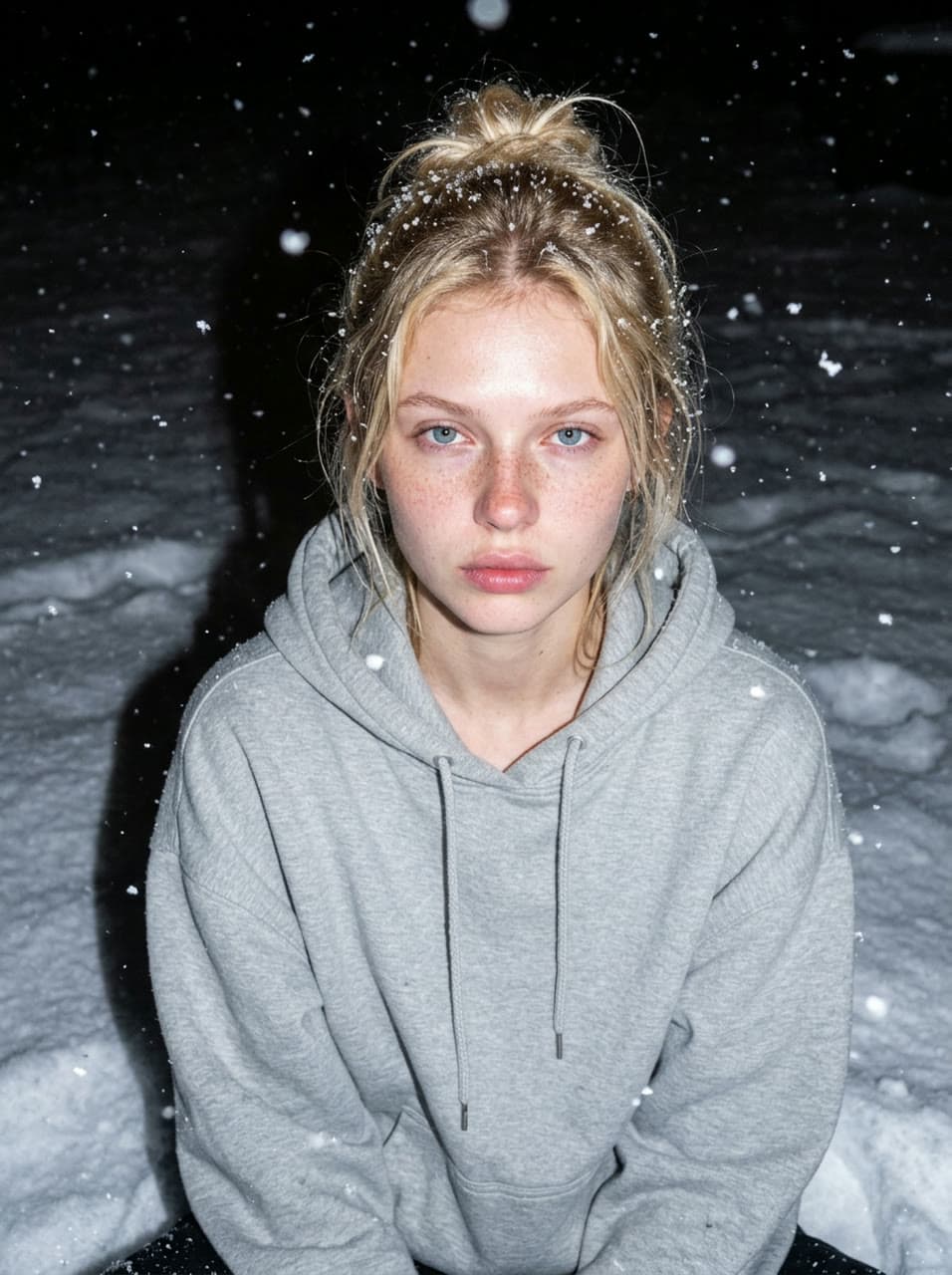
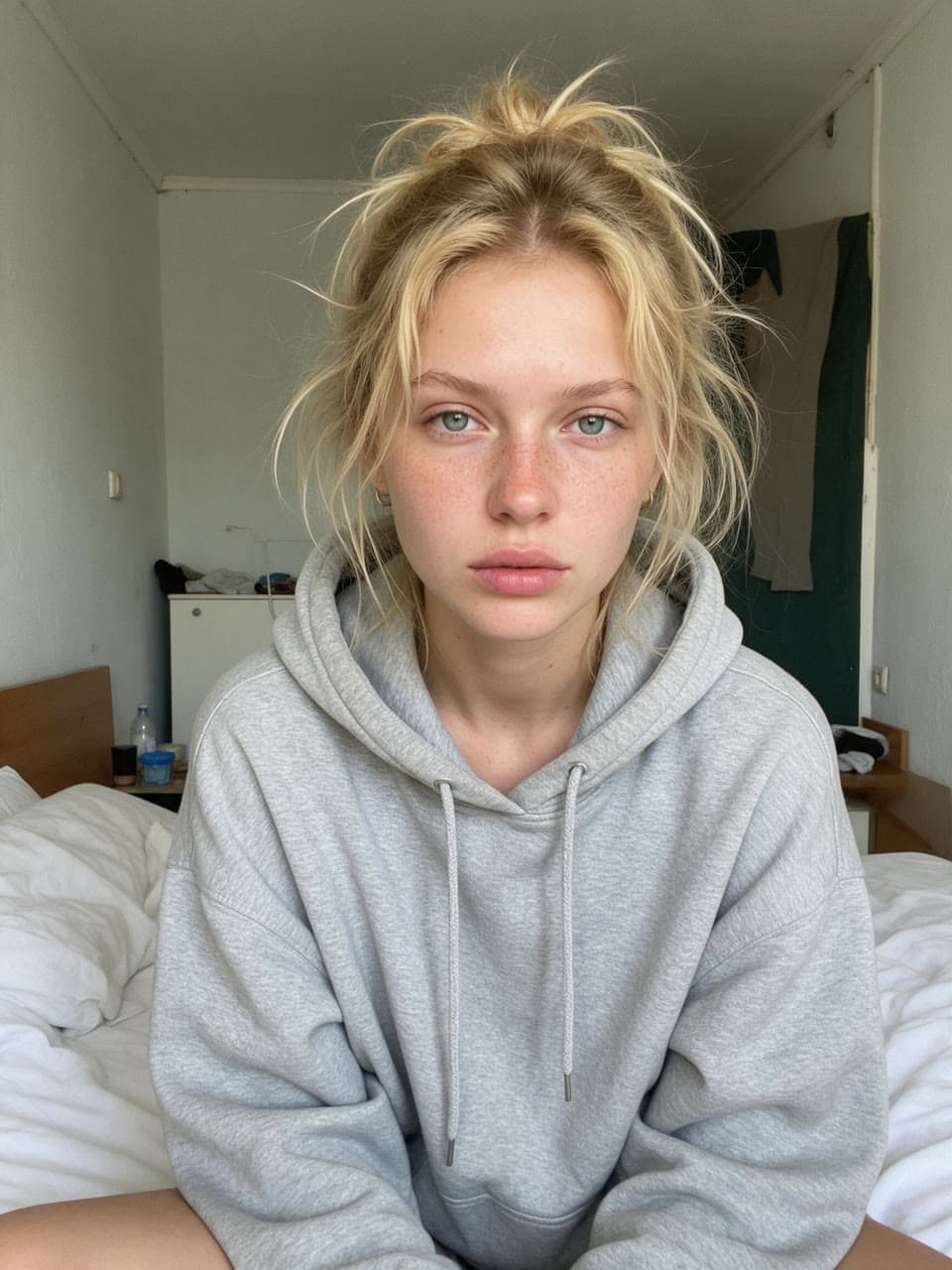
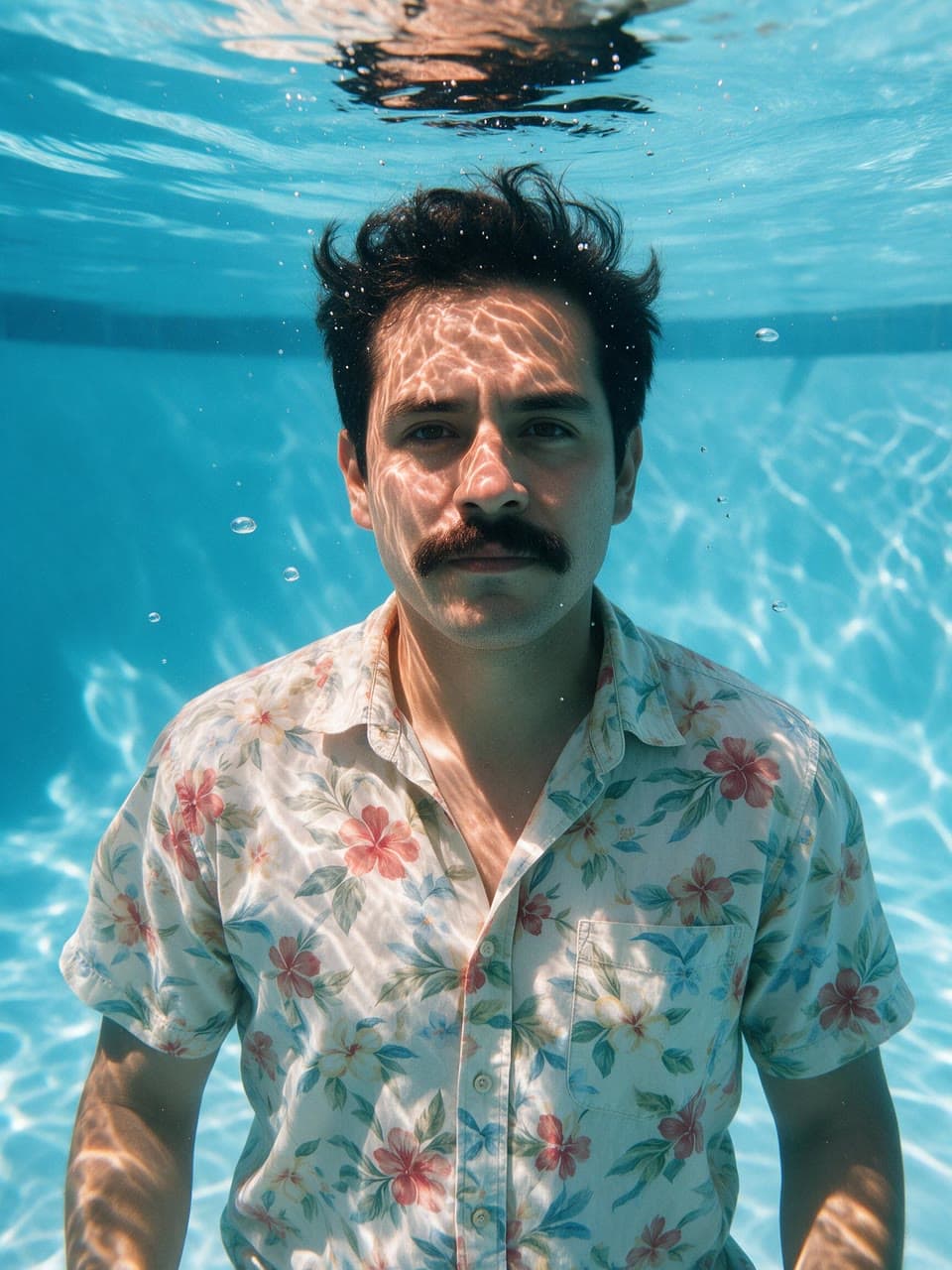
Each one started from the photo on the left and a line of instructions. Drag to compare; the caption names the model that made the edit.
 PhotoEdited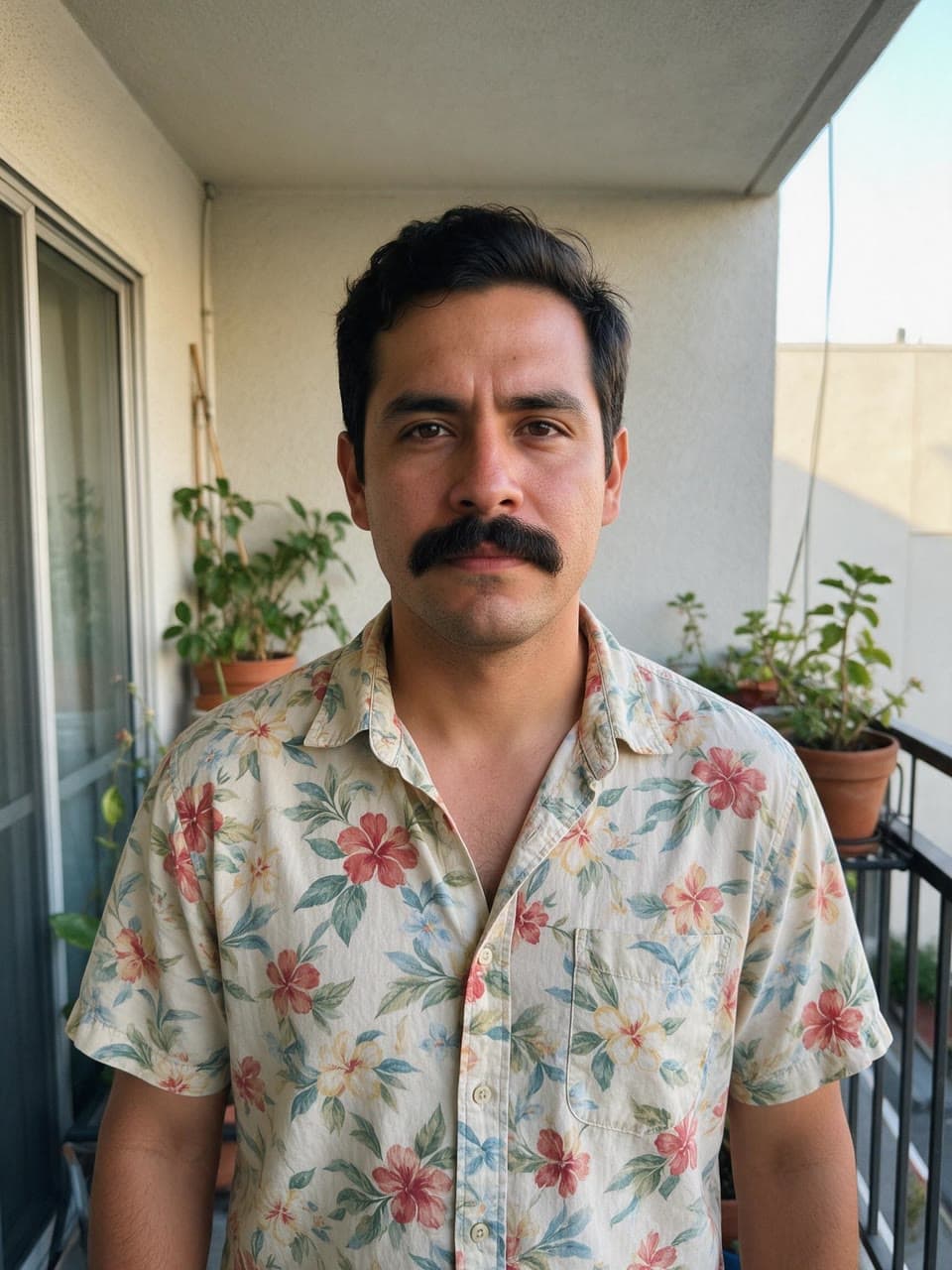
From the balcony to the deep endSeedream 5.0 Pro 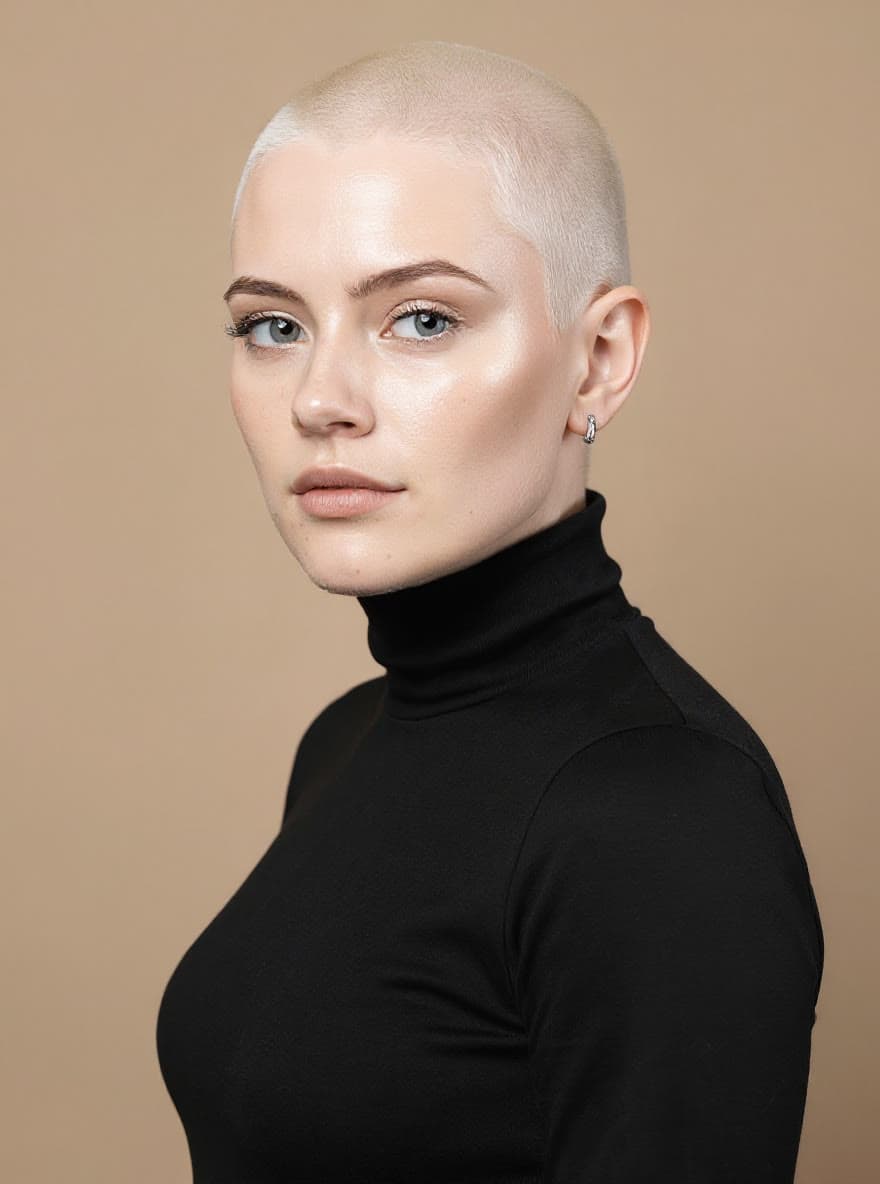 PhotoEdited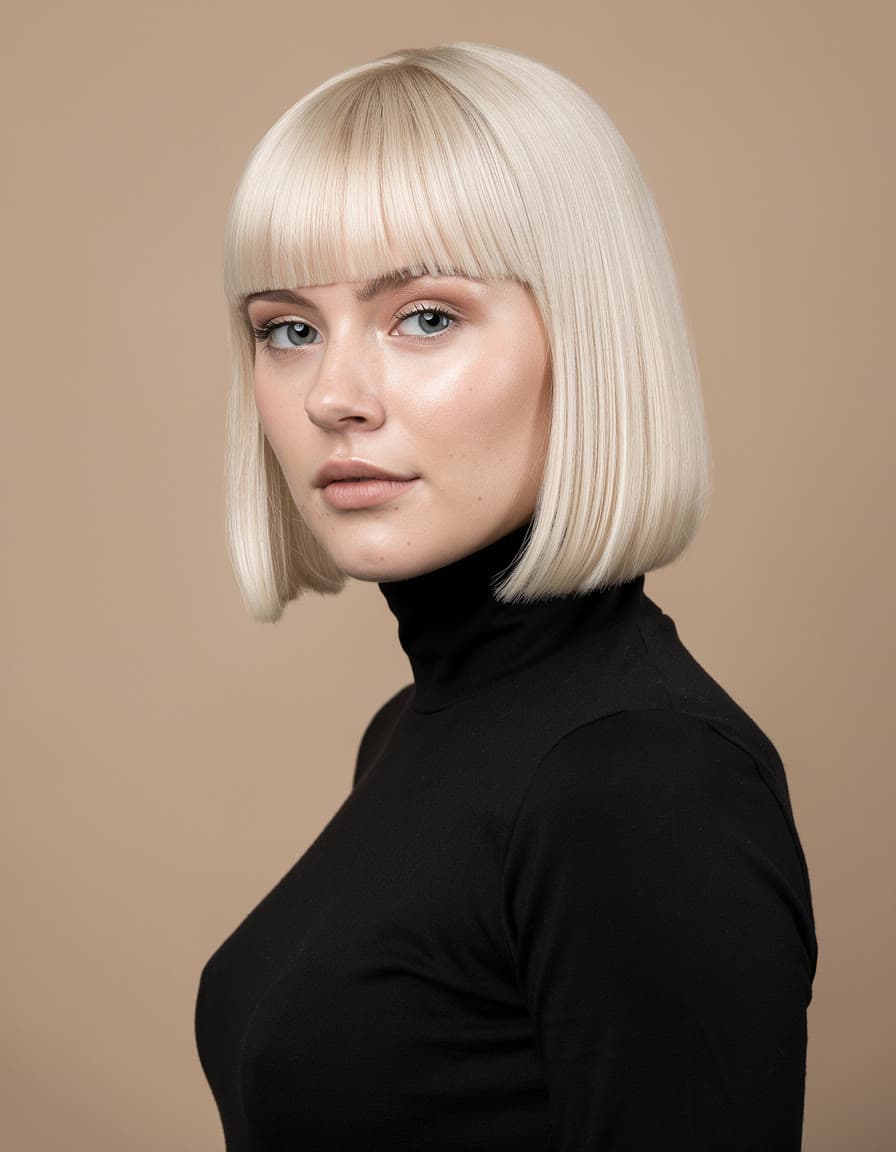
A platinum bob, shaved to a buzzFLUX.1 Kontext [pro] 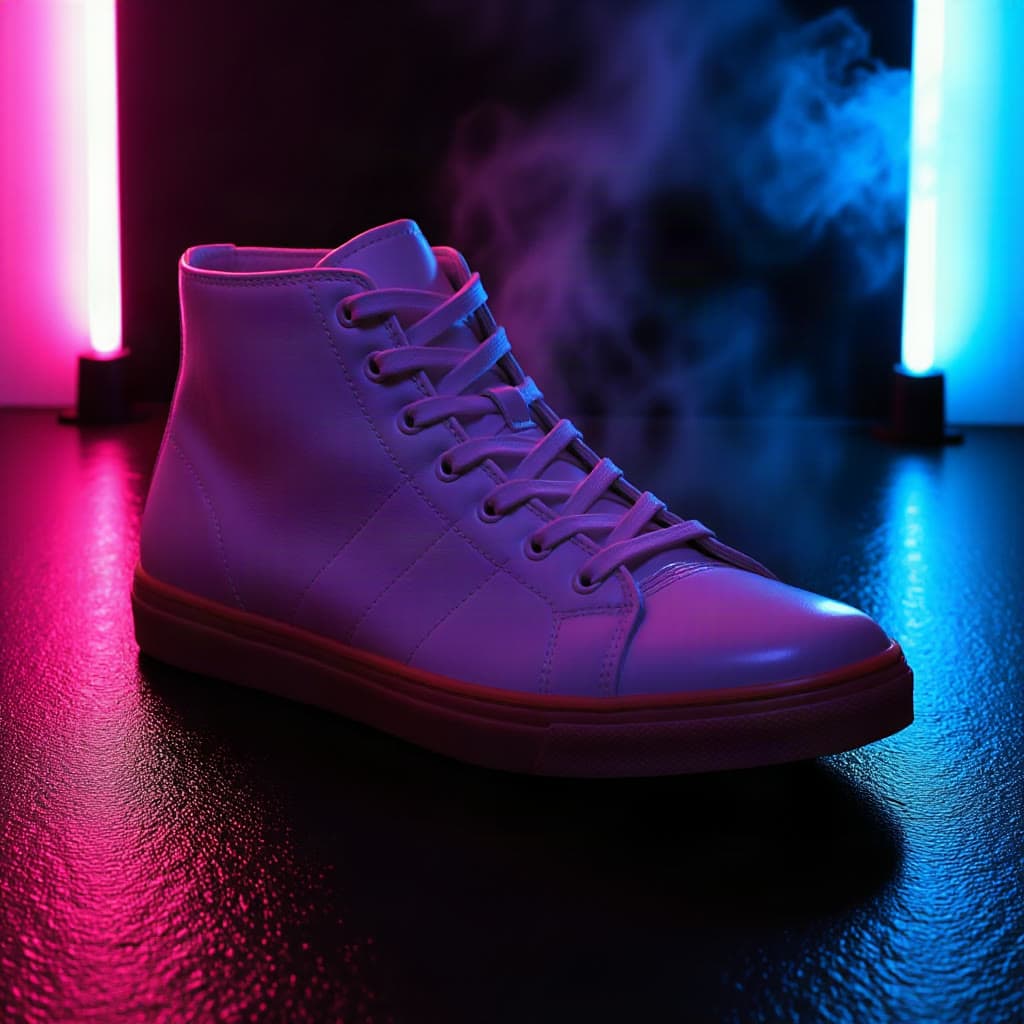 PhotoEdited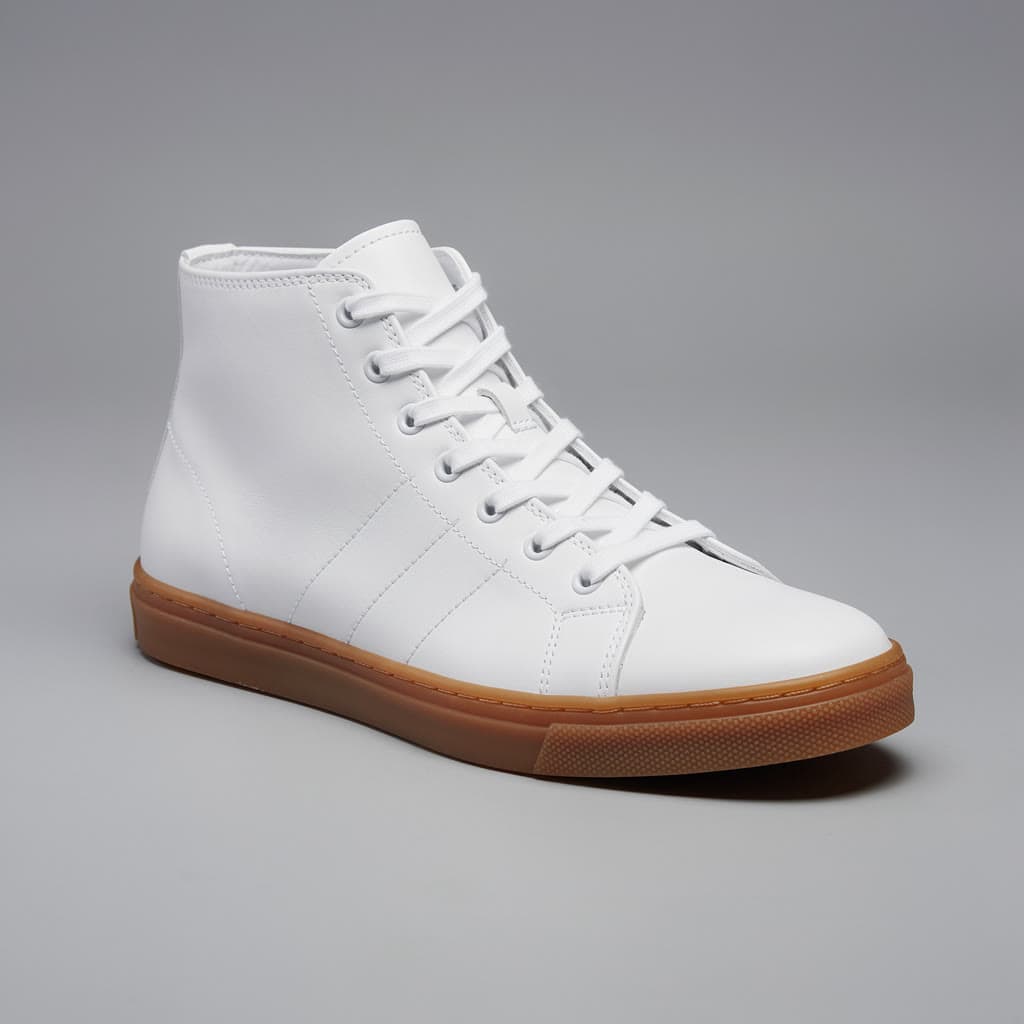
A white sneaker, relit in neonIC-Light v2 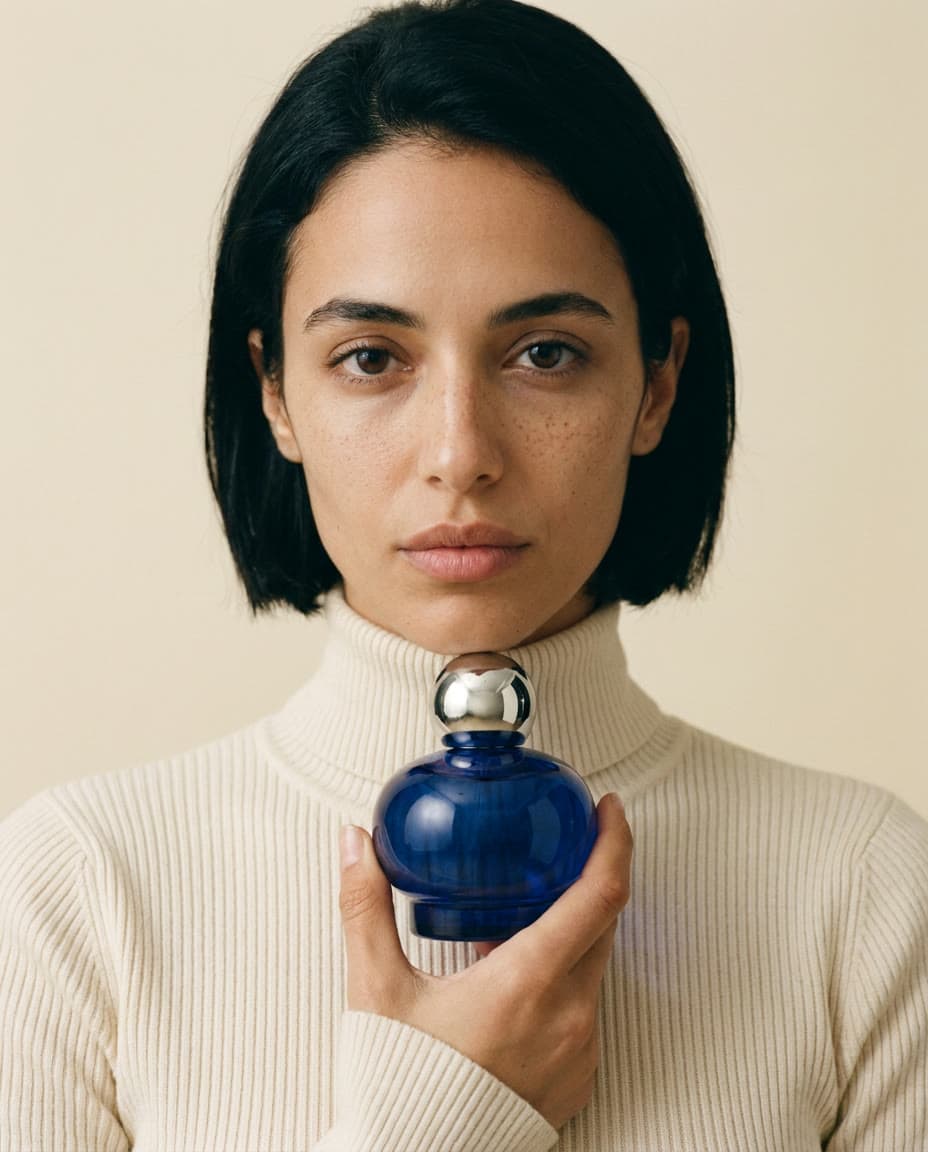 PhotoEdited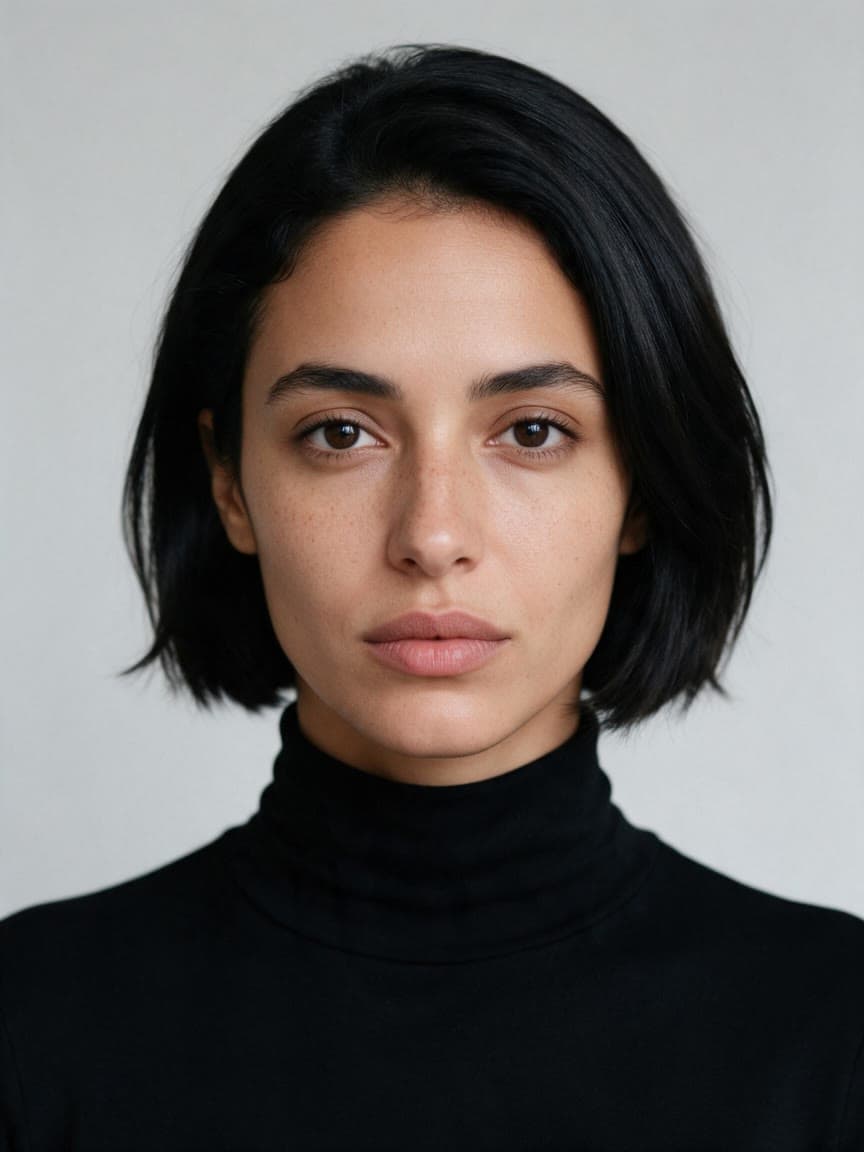
Her photo and a bottle, as a campaign shotNano Banana Pro 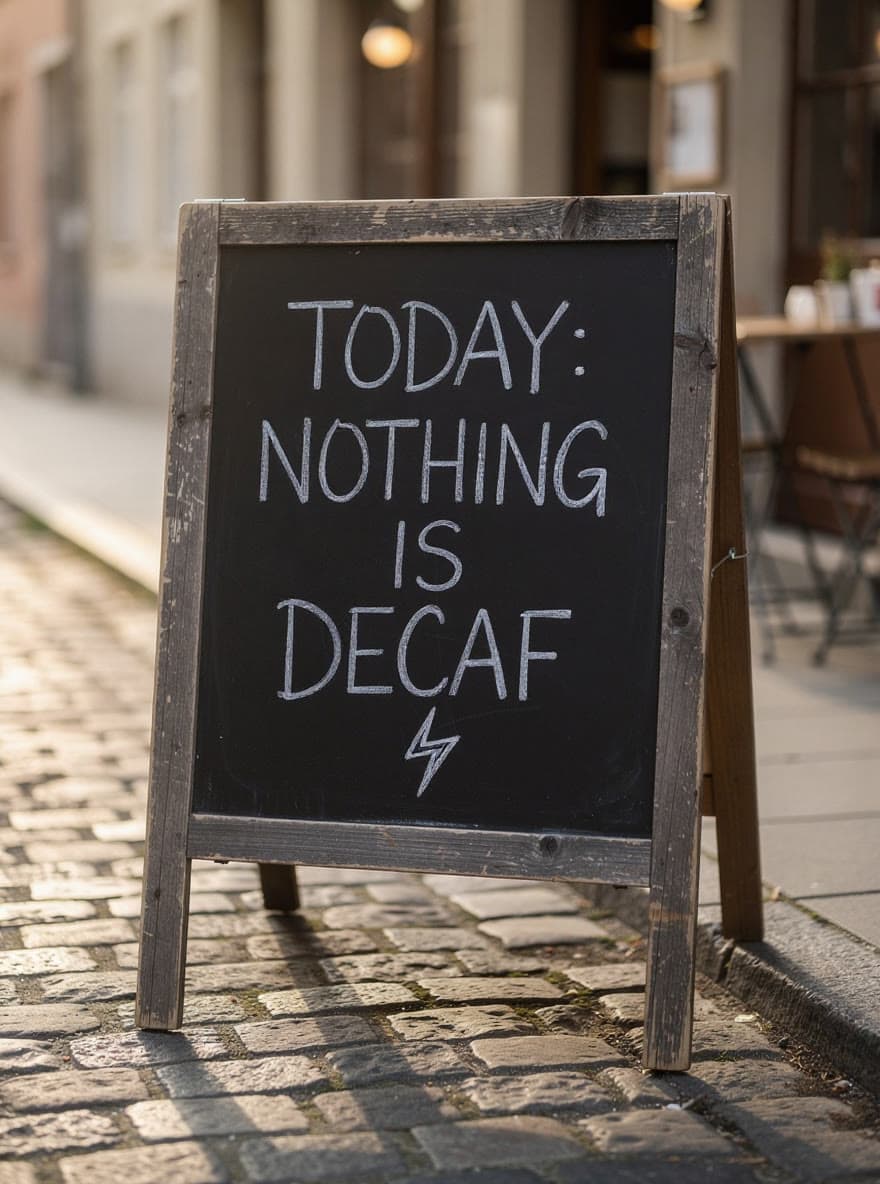 PhotoEdited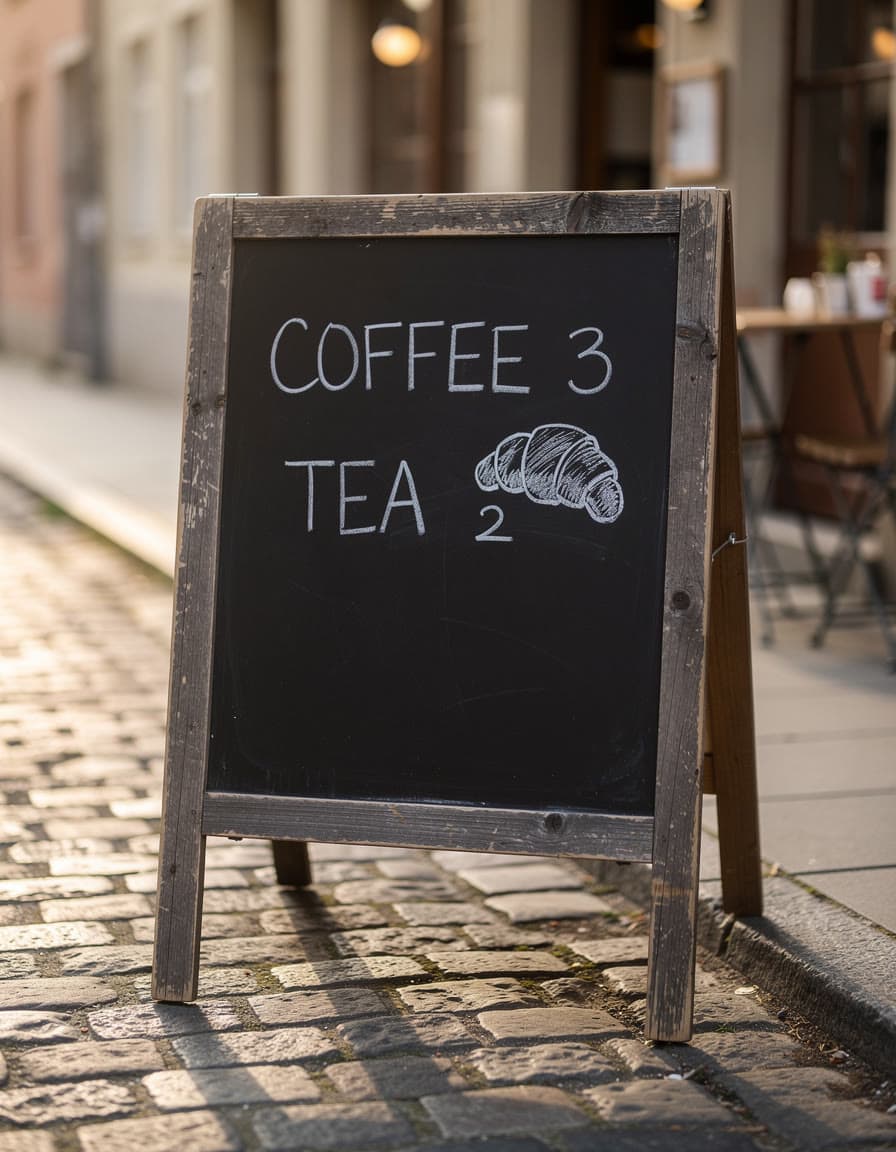
New words on the chalkboardFLUX.1 Kontext [max] 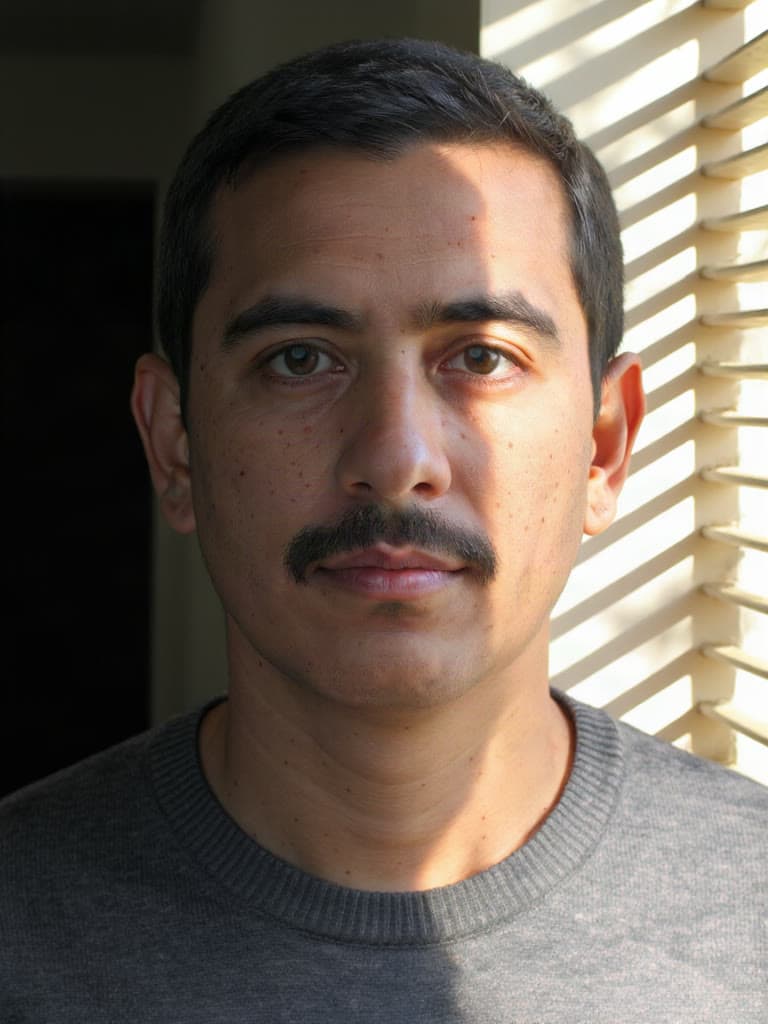 PhotoEdited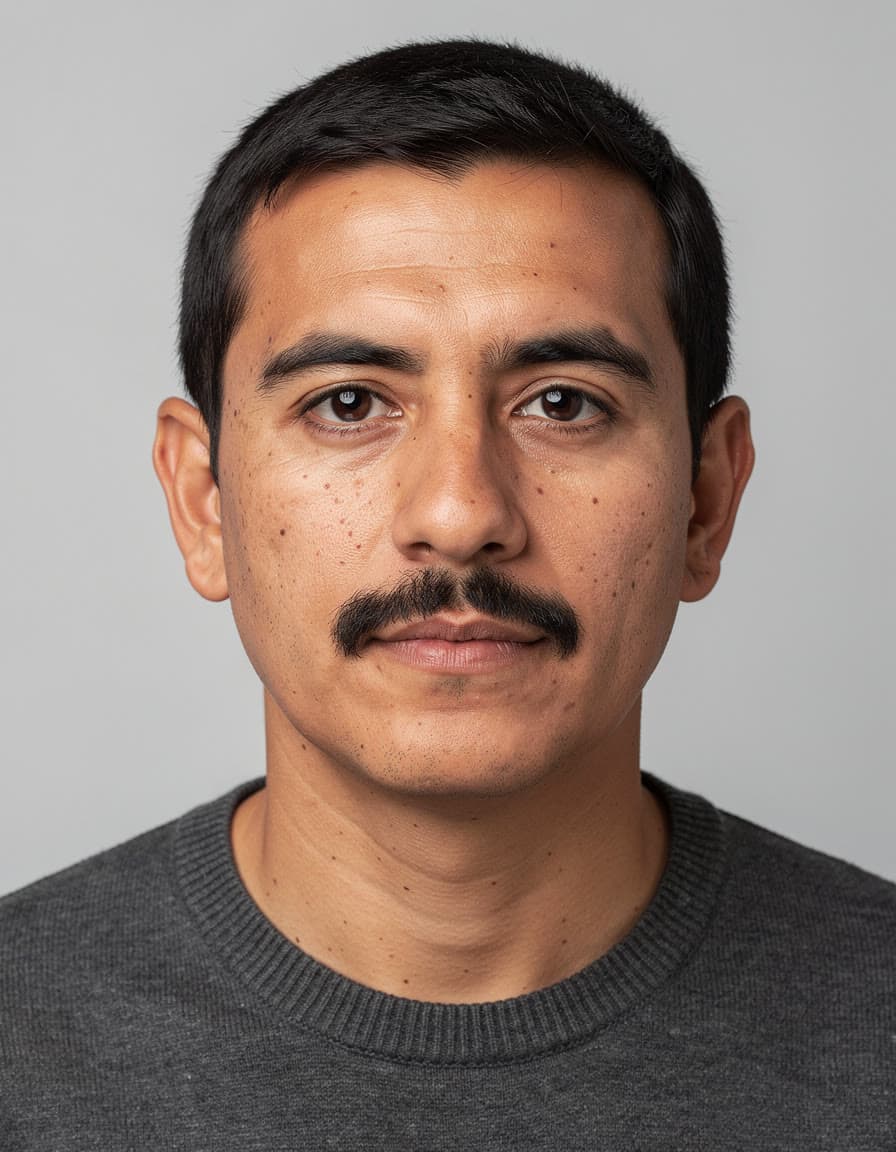
Late sun through the blindsIC-Light v2
Pick the model for the edit
Each model edits its own way: how closely it keeps your photo, how it holds a face, how well it writes words. One account runs them all, so you can try the same photo on two and keep the better result.
- Nano Banana Profrom $0.19
Gemini 3 Pro Image: Google's best for legible text, infographics and edits of up to 6 references.
From words, or up to 6 of your photos. By Google.
Edit a photo with Nano Banana Pro - GPT Image 2.5 Sunburstfrom $0.11
OpenAI's newest image model, the precise editor: restages your product or photo and keeps its label and text.
From words, or up to 4 of your photos. By OpenAI.
Edit a photo with GPT Image 2.5 Sunburst - FLUX.1 Kontext [pro]from $0.044
Edits an image from plain instructions, from a small fix to a new scene.
From one of your photos. By Black Forest Labs.
Edit a photo with FLUX.1 Kontext [pro] - Seedream 5.0 Profrom $0.039
ByteDance's newest: detailed 2K images and edits of up to 4 reference images.
From words, or up to 4 of your photos. By ByteDance.
Edit a photo with Seedream 5.0 Pro - Nano Banana 2from $0.057
Gemini 3.1 Flash Image: fast, from 512 px to 4K, with edits of up to 6 references.
From words, or up to 6 of your photos. By Google.
Edit a photo with Nano Banana 2 - Qwen-Image 3from $0.05
Alibaba's newest image model, from 2026-07-21: images and edits of your own, with strong text in Chinese and English.
From words, or up to 4 of your photos. By Alibaba.
Edit a photo with Qwen-Image 3
Questions
Questions people ask
- Is the AI photo editor free?
- You can start free: a new account comes with $2 of credit, and no card is needed. That is about 51 edits with Seedream 5.0 Pro or 10 with Nano Banana Pro. After that you add credit when you want more and pay per edit. There is no subscription, and the welcome credit is one per person.
- Why do I add my photo after signing in?
- This page doesn't take uploads, so nothing of yours is kept before you have an account. Type what to change, sign in, and add the photo on the model's page in the studio. The words you typed are already in its prompt box.
- Which model should I use?
- Nano Banana Pro and Nano Banana 2 take several photos at once, which helps when a face or a product has to stay the same. FLUX.1 Kontext [pro] works from one photo and plain instructions, one change at a time. GPT Image 2.5 Sunburst keeps a product's label and text when it restages it, and Qwen-Image 3 writes Chinese and English well. Seedream 5.0 Pro costs the least per edit. Each price sits next to the model's name in the box.
- Can it remove an object or a person from a photo?
- Yes. Say what to take out and what should be there instead, such as “remove the people behind me and continue the beach”. AI edits can change other details of a photo too, so look at the result at full size, and run it again or try another model if the fill looks wrong.
- Will it keep my face the same?
- Say what must not change, and start from a clear, well-lit photo. Nano Banana Pro and Nano Banana 2 take up to 6 photos at a time, so you can give them a face from more than one side. AI can still change small details of a face, so check every result before you use it.
- Can I change the background of a photo?
- Yes. Say where the photo should be now, like “put him on a rooftop at sunset”, and what should stay as it is. For a plain cut-out on a transparent background, Leap's free background remover does it in your browser, with no account.
- Can I use the edited photos commercially?
- Leap's Terms say you keep whatever rights you have in the photos you upload, and that, as between you and Leap, you own the results the studio makes for you, to the extent the law allows. They set no personal-use-only limit. Edit only photos you have the right to use, and don't upload photos of people who have not agreed: the people shown in a result may still have rights in it.
- Do you train AI on my photos?
- No. Leap does not use your photos, prompts or results to train AI models, and does not use them in its marketing or examples without asking you first.
- What happens if an edit fails?
- It costs nothing. Only a run that succeeds is charged, and you see the price on the Generate button before you press it.
Your photo, changed in one line.
Start free, no card needed. Every edit is priced before you run it.
Edit a photo